Is Your Windows Laptop Running Slow?
A slow Windows laptop can make even simple tasks frustrating. Whether you’re opening Microsoft Office, browsing the web, or attending online meetings, poor performance affects productivity.
The good news? In most cases, you can make your Windows laptop faster without spending money.
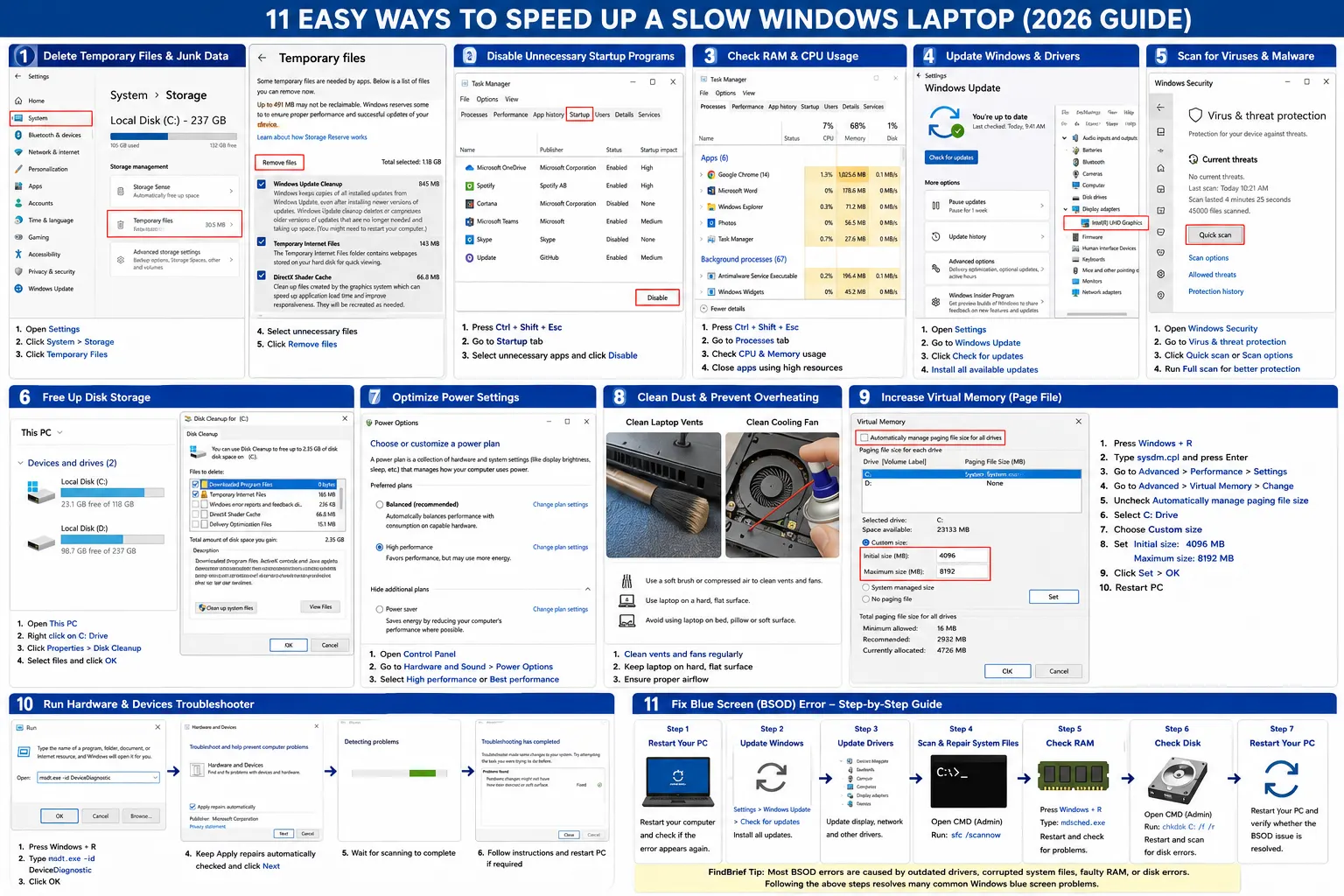
Here are 11 simple and effective methods to improve Windows performance.
1. Delete Temporary Files & Junk Data
Temporary files accumulate over time and consume valuable storage space, slowing down your system.
How to do it: Settings → System → Storage → Temporary Files Select unnecessary files and click Remove Files.
Why it helps:
- Frees up storage
- Improves system responsiveness
- Removes unnecessary cache
2. Disable Unnecessary Startup Programs
Many applications start automatically when Windows boots, increasing startup time.
How to do it: Task Manager → Startup Apps Disable apps you don’t need at startup.
Why it helps:
- Faster boot time
- Lower RAM usage
- Better overall performance
3. Check RAM & CPU Usage
Sometimes one application uses excessive memory or processor power.
How to do it: Task Manager → Processes Sort by CPU or Memory usage to identify resource-heavy apps.
Why it helps:
- Finds performance bottlenecks
- Lets you close unnecessary programs
4. Update Windows & Drivers
Microsoft regularly releases updates that improve stability, security, and performance.
How to do it: Settings → Windows Update → Check for Updates Also install optional driver updates if available.
Why it helps:
- Fixes bugs
- Improves compatibility
- Enhances performance
5. Scan for Viruses & Malware
Malware can slow down your computer by consuming system resources.
How to do it: Windows Security → Virus & Threat Protection → Quick Scan Run a Full Scan periodically for better protection.
Why it helps:
- Removes malicious software
- Protects personal data
- Restores system performance
6. Free Up Disk Storage
A nearly full C: drive can significantly reduce Windows performance.
How to do it:
- Delete large unused files
- Empty the Recycle Bin
- Run Disk Cleanup
Try to keep 15–20% of your drive free.
Why it helps:
- Faster file access
- Better system performance
- Improved Windows updates
7. Optimize Power Settings
Many laptops use Balanced Mode, which limits performance to save battery.
How to do it: Control Panel → Hardware & Sound → Power Options Choose High Performance or Best Performance (if available).
Why it helps:
- Better CPU performance
- Faster application response
8. Clean Dust & Prevent Overheating
Dust blocks airflow, causing higher temperatures and slower performance.
How to do it:
- Clean laptop vents with a soft brush or compressed air.
- Use the laptop on a hard, flat surface.
- Avoid blocking ventilation.
Why it helps:
- Prevents overheating
- Reduces thermal throttling
- Improves long-term performance
9. Increase Virtual Memory
If your PC feels slow during multitasking, increasing Virtual Memory can improve performance.
Steps:
- Press Windows + R
- Type
sysdm.cpl → Press Enter
- Go to Advanced → Performance → Settings
- Click Advanced → Virtual Memory → Change
- Uncheck Automatically manage paging file size
- Select C: Drive
- Choose Custom Size
- Set:
- Initial Size: 4096 MB
- Maximum Size: 8192 MB (for 4GB RAM)
- Click Set → OK → Restart PC
10. Run Hardware & Devices Troubleshooter
Fix common hardware issues like USB, printer, keyboard, and mouse problems.
Steps:
- Press Windows + R
- Type
msdt.exe -id DeviceDiagnostic
- Click OK
- Keep Apply repairs automatically checked.
- Click Next
- Follow the on-screen instructions and restart your PC if required.
11. Fix Blue Screen (BSOD) Error – Step-by-Step Guide
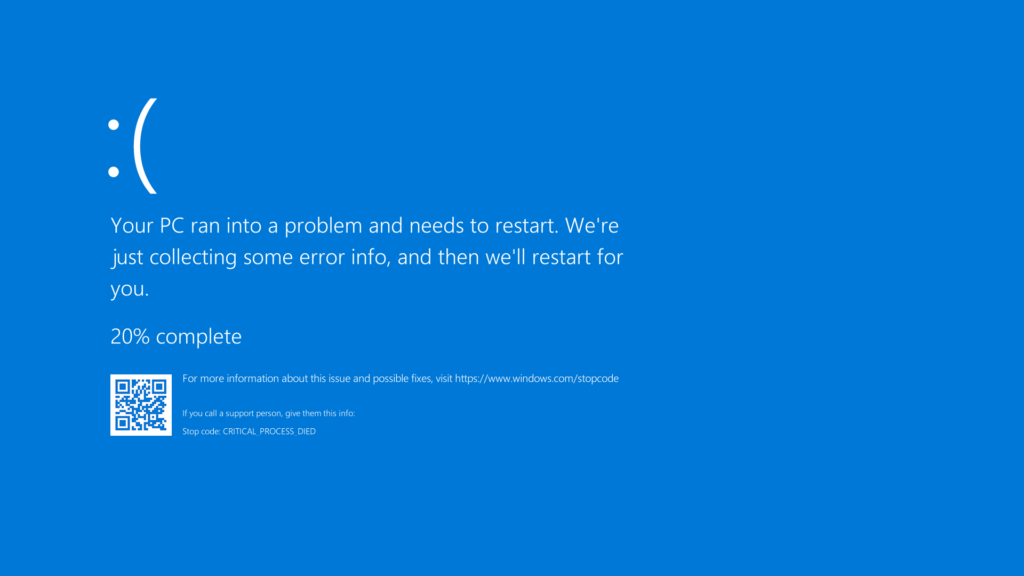
If your Windows PC shows a Blue Screen of Death (BSOD), follow these steps to fix the issue.
Step 1: Restart Your PC Restart your computer once and check if the error appears again.
Step 2: Update Windows Go to: Settings → Windows Update → Check for Updates Install all available updates and restart your PC.
Step 3: Update Device Drivers
- Press Windows + X
- Click Device Manager
- Expand the device category (Display Adapter, Network Adapter, etc.)
- Right-click the device → Update Driver
- Select Search automatically for drivers
Step 4: Scan & Repair System Files
- Search Command Prompt
- Right-click → Run as Administrator
- Type:
- Press Enter and wait for the scan to complete.
Step 5: Check RAM for Errors
- Press Windows + R
- Type:
- Click OK
- Select Restart now and check for problems
Windows will automatically test your RAM.
Step 6: Check Hard Disk for Errors
- Open Command Prompt (Administrator)
- Type:
- Press Enter
- Type Y and restart your PC to begin the disk scan.
Step 7: Restart Your PC After completing all the steps, restart your computer and verify whether the BSOD issue has been resolved.
FindBrief Tip: Most BSOD errors are caused by outdated drivers, corrupted system files, faulty RAM, or disk errors. Following the above steps resolves many common Windows blue screen problems.